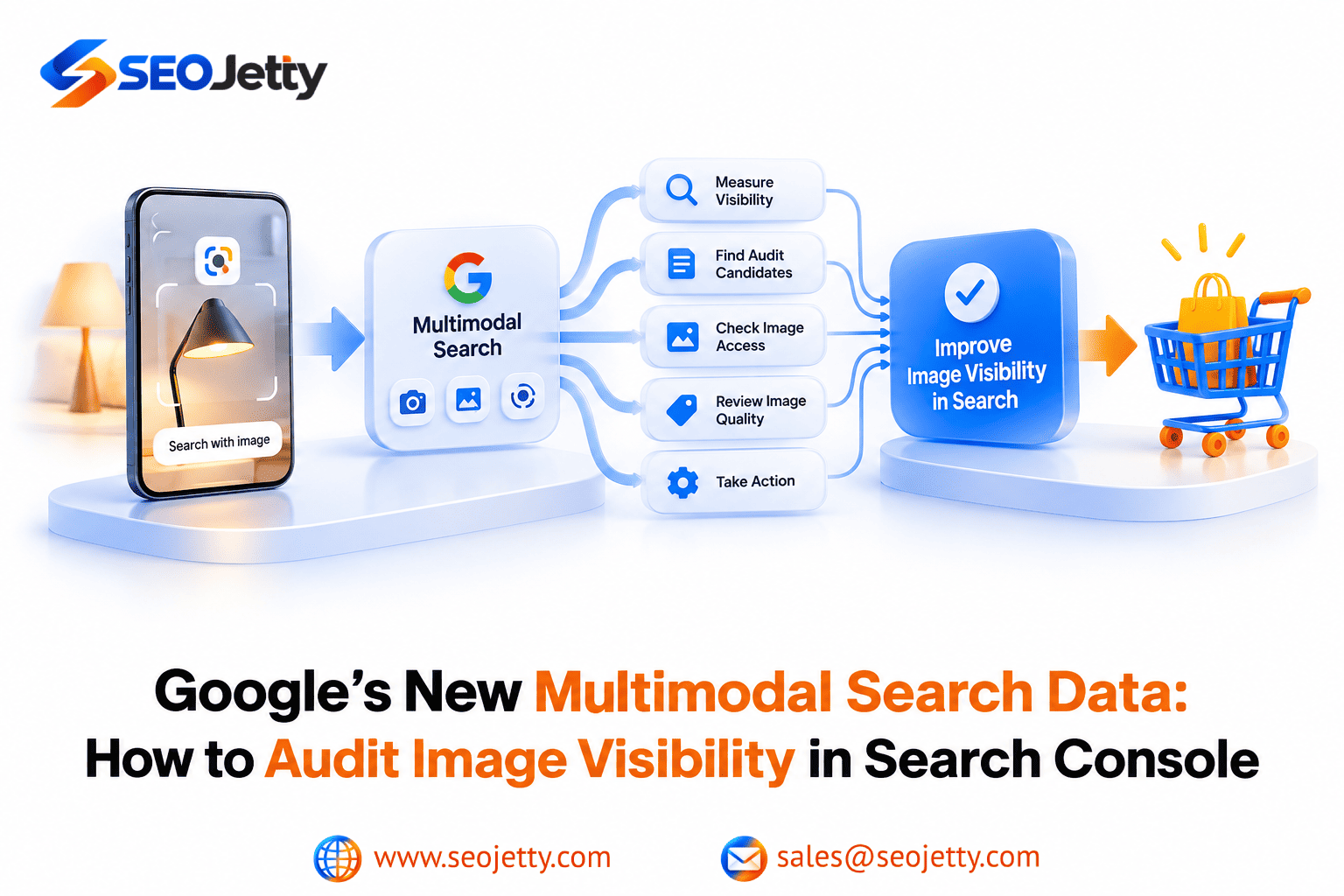
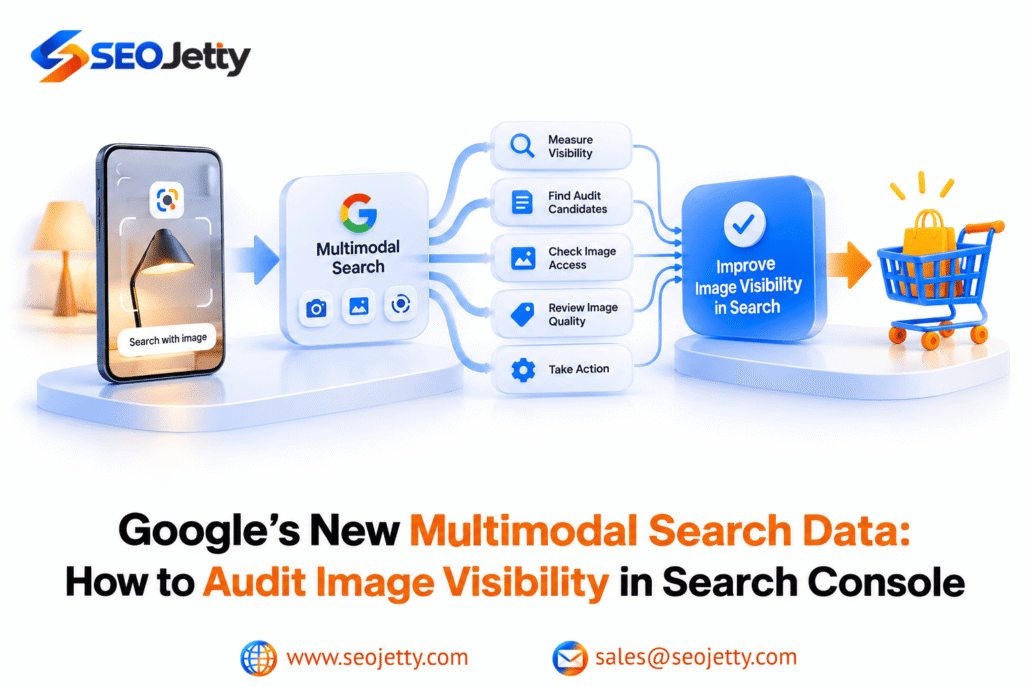
A shopper spots a lamp in a photo and searches for something similar. Another circles a pair of trainers on their phone. Neither needs to know the product name before looking for it.
For retailers, the measurement question is practical: are these image-led searches bringing people to relevant product pages?
Google’s new multimodal reporting in Search Console helps answer that question. This guide explains how to build a baseline, identify pages worth investigating and audit the images behind them without confusing visibility with sales.
What does the new multimodal filter measure?
Google announced multimodal search reporting on September 24, 2026, with a global rollout starting that day. It covers searches originating from Google Lens, Circle to Search on Android, image uploads and Chrome’s image-search feature.
The filter is available in Search results performance reporting and generative AI performance reporting. Google says metrics appear when a site receives traffic from these searches. The documentation reviewed for this guide does not confirm that every property has completed the rollout.
Reporting distinction: “Web: multimodal” covers image-led Web searches. “Image” covers results in the Google Images tab. “Web: text-based” covers searches originating from typed text. Review these separately; an increase in Google Images clicks does not establish an increase in Lens traffic.
Refer to Google’s Search results report guide for the current filter definitions.
Step 1: Capture a reliable baseline
- Open the correct property in Search Console and select the Search results performance report.
- Choose Web: multimodal in the search-type filter.
- Select a date range with available data, excluding preliminary days.
- Enable clicks, impressions, CTR and average position.
- Review the Pages, Countries and Devices dimensions, then export the views you need.
Because the reporting is new, first check the earliest available date in your property. Do not assume a blank earlier period means the site received no visual-search traffic.
Once sufficient history exists, a useful starting comparison is two complete 28-day periods. Keep page selection, country, device and search type consistent. For a retailer serving both markets, review the United States and United Kingdom separately before combining the results.
Record your filter settings and export date. This makes the next review reproducible and prevents a change in reporting scope from looking like a performance improvement.
Step 2: Use landing pages to identify audit candidates
Google states that the Queries dimension is unavailable for multimodal searches, because these searches primarily use images. You cannot treat this report as a keyword list or a collection of shoppers’ uploaded photographs.
The Pages dimension is more useful for this audit. Most performance data is attributed to canonical URLs, so check the canonical before concluding that a product variant has no visibility. Google explains this in its dimensions and data-grouping documentation.
Choose a small, commercially meaningful sample rather than inspecting every product immediately:
- Visible pages with few clicks: Investigate whether the product presentation and destination answer a plausible shopping need.
- Pages attracting clicks: Check stock, variant selection, delivery information and the path to purchase.
- Priority products with little recorded visibility: Check access and content quality, while recognizing that demand may also be limited.
Do not infer which gallery image generated a click from a page-level row. Map the page to its image assets as a separate audit task.
Step 3: Check whether Google can access the product imagery
Start with the product page and its principal image URL. Check for failed requests, login requirements, unintended crawl blocks and image-hosting restrictions.
Google recommends standard HTML image elements with a usable source URL; it does not index CSS background images. Responsive implementations should include an image source fallback. An image sitemap can assist discovery, including for images hosted on a CDN.
Check rendered content in URL Inspection. Product images that appear only after a user clicks a gallery control may need attention: Google Search does not interact with the page like a shopper. Its lazy-loading guidance explains how to test whether image URLs appear in rendered HTML.
Record each issue with a page URL, image URL, evidence, owner and proposed correction. A problem shared by a product template deserves attention before isolated cosmetic changes.
Step 4: Review what the images actually communicate
Check sharpness, page speed, relevant surrounding text and descriptive alt text against Google’s image SEO guidance. Avoid keyword lists in alt attributes.
Then review the page as a buyer. For a lamp, can someone distinguish the shade shape, finish, size and base? For footwear, can they see the colour, profile and sole? Add views that resolve genuine buying questions.
For example, “Black metal desk lamp with an adjustable arm” is a useful description if that is what the image shows. “Best cheap lamp UK USA buy desk lighting” is not.
Check that the selected variant matches the main photograph and that labels agree with the visible product. These are content-quality checks, not a formula for securing Lens rankings. Alt text alone cannot guarantee visual-search visibility.
Step 5: Verify product information and structured data
Audit the product’s visible details alongside its structured data and, where used, Merchant Center feed. Check the image, product identity, price, currency and availability for discrepancies.
Google supports supplying product information through Product structured data, Merchant Center feeds or both. These can support eligibility for product experiences; they do not guarantee a particular placement.
For US and UK storefronts, pay particular attention to currency, regional availability and delivery promises. A shopper who finds the right-looking product but lands on an unavailable regional offer has encountered a business problem even if the search click was recorded correctly.
Step 6: Connect the audit to shopping outcomes
Use Search Console to assess discovery and clicks. Use analytics to examine what happens after visitors arrive.
As a practical follow-up, review the same landing-page group in GA4 for Google organic sessions, add-to-cart actions, checkout starts and purchases. Validate event tracking before presenting these figures to management.
Keep the attribution boundary clear: a Search Console page-level multimodal total does not identify individual GA4 sessions. Do not label every Google organic sale on those pages as a Lens sale. Google’s Search Console and Analytics comparison guide also explains why clicks and sessions differ.
A worked interpretation
Illustrative example, not client data: A chair category records 10,000 multimodal impressions and 200 clicks in one period, then 12,000 impressions and 180 clicks in the next. CTR falls from 2% to 1.5%.
The defensible conclusion is that recorded exposure increased while clicks decreased. It does not establish that photography deteriorated or that a particular competitor took the traffic.
Inspect the country, device and page mix. Check whether stock changes, promotions or newly visible products altered the audience. Fix an observed issue, record the date and review it over a comparable period.
Where practical, retain a similar unchanged product group for comparison. This can strengthen your interpretation, although an observational comparison still does not prove causation.
A short visual-search audit checklist
- Save the multimodal baseline and exact reporting scope.
- Select relevant product pages and map their image URLs.
- Check page access, image access and rendered content.
- Review imagery, descriptions and variant consistency.
- Reconcile product details, structured data and feed information.
- Record issues, owners, changes and review dates.
- Report search performance separately from attributed sales.
For help addressing the technical and content issues uncovered by the audit, explore SEO Jetty’s visual search optimization service.
Frequently asked questions
Can I separate Google Lens from Circle to Search?
The documentation reviewed describes these sources within the combined multimodal search type. It does not document a source-by-source selector. Label the results “multimodal search” rather than attributing the entire total to Lens.
Should I rename every existing image file?
No. Treat short, descriptive filenames as a publishing standard. For existing assets, prioritize broken access, misleading imagery and missing product information. A mass URL change solely to add keywords creates migration work that may not address the main problem.
Do I need separate US and UK versions of this audit?
Use one audit method with separate market segments. Create distinct actions when the evidence reveals different stock, currency, shipping or storefront issues. Duplicating the process without a real market difference adds little value.
How often should an e-commerce team repeat the audit?
A monthly performance review is a reasonable starting point. Repeat technical spot checks after a theme release, image-CDN migration or major catalogue update. Adjust the cadence to traffic volume and how frequently your store changes.